Unfortunately we don't fully support your browser. If you have the option to, please upgrade to a newer version or use Mozilla Firefox, Microsoft Edge, Google Chrome, or Safari 14 or newer. If you are unable to, and need support, please send us your feedback.
Scopus: Comprehensive, multidisciplinary, trusted abstract and citation database
Quickly find relevant and authoritative research, identify experts and gain access to reliable data, metrics and analytical tools. Be confident in advancing research, educational goals, and research direction and priorities — all from one database.
Enhance research and scholarship with comprehensive data and analytics
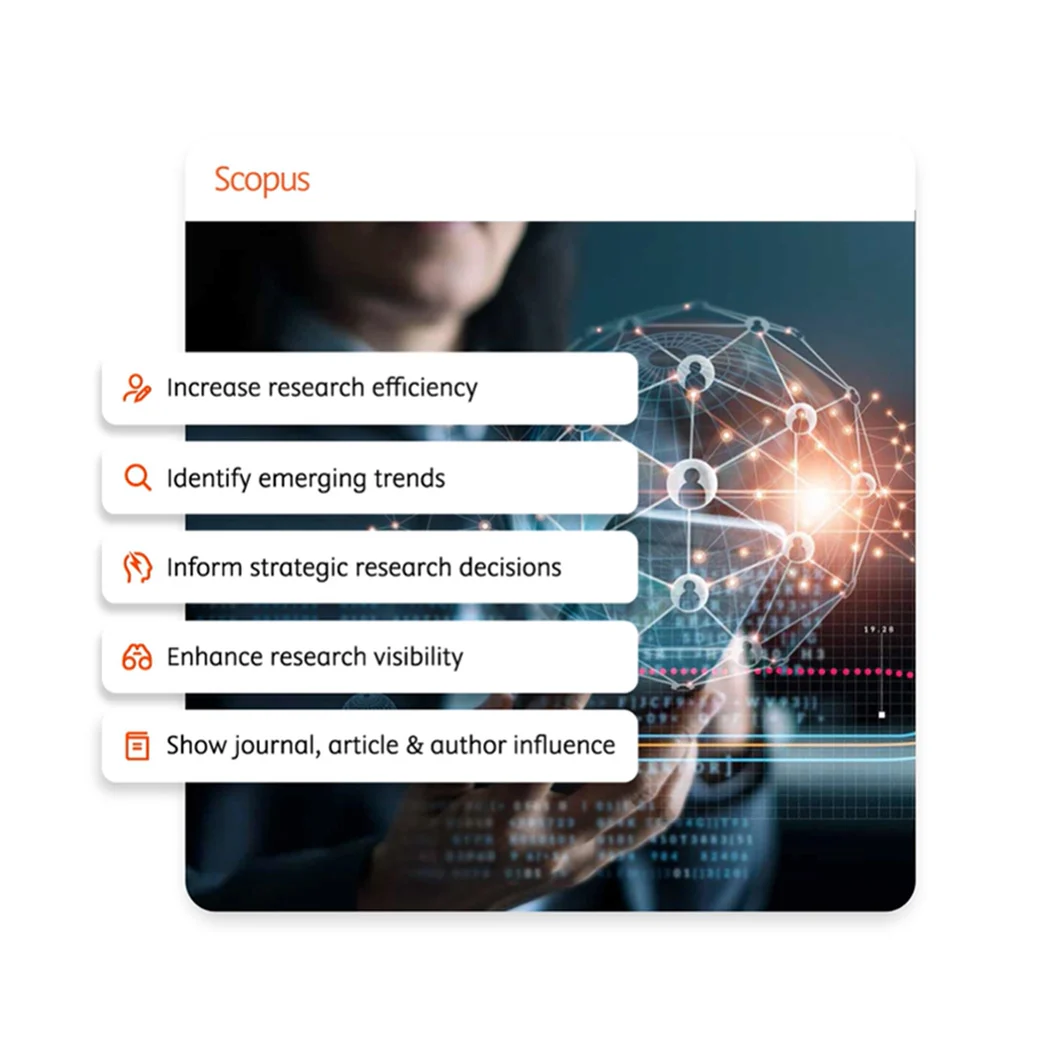
Increase research efficiency
Having access to comprehensive content and high-quality data is effective only if you can easily find the information you need. The state-of-the-art search tools and filters in Scopus enable you to quickly:
●
Discover relevant sources
●
Identify trends in research or emerging topics
●
Uncover potential research collaborators
Use our Quick Reference Guide to learn about our search features and filters.
Scopus has comprehensive scholarly literature, data and analytical tools to keep you up-to-date and ahead of the competition.
●
94M+ records
●
29,200+ active serial titles
●
330,000+ books
Watch this video(opens in new tab/window) to get a quick overview of how Scopus helps organizations of any size progress basic and applied research, support educational goals, and inform research strategies.
In the ever-changing landscape of academic research, staying at the forefront requires modern tools. Scopus AI is an AI-powered tool that helps you navigate the vast amount of information available in Scopus, allowing you to gain a deeper understanding of your research topic, generate new insights, and enhance your overall research experience.
Scopus AI accelerates the journey from inquiry to discovery, enabling you to push the boundaries of knowledge and drive innovation in your field.
Scopus empowers organizations with unparalleled access to critical global research, which can be integrated with existing platforms to increase analysis and insights.
Its advanced suite of analytical tools helps users visualize, compare and export data to evaluate research output and trends, assisting in measuring research performance at the individual or institutional level, and helping inform strategic research decisions.
Scopus Author Profiles offer new insights into the reach and influence of research, helping to build a reliable body of work to support career goals. Once a profile is validated, Scopus takes over, automatically populating it and continuously building on an author's credentials.
Scopus is the only database to blend automated and manually curated data to generate current author profiles. This process allows us to deliver over 17m profiles that support accurate author searches in the same way you can search for articles: efficiently and easily.
Scopus outperforms other abstract and citation databases by providing a broader range of research metrics covering nearly twice the number of peer-reviewed publications.
Using Scopus metrics, you can demonstrate the influence of your institution's scholarly output. Discover the details behind our metrics, giving you confidence in knowing how the numbers are derived.
Scopus AI has been officially launched! With our new AI-powered search tool, researchers can find papers by natural language queries. Results are synthesized drawn from decades of research into clear digestible summaries.
A dedicated SDG tab has been added to the Scopus Organizational Profile page, allowing users to explore the SDG impact of an organization effortlessly. This innovative feature showcases the number of documents published by the organization that have contributed to specific SDGs.
Industry-leading collection of scholarly abstracts and citations
Scopus combines an expertly curated abstract and citation database with enriched data and linked scholarly literature across a wide variety of disciplines.
Comprehensive coverage, greater insights
Superior coverage of emerging markets gives access to critical, high-quality research being conducted and published in developing countries not found in other databases.
Independent review and selection
Scopus is source-neutral and curated by an international panel of independent subject matter experts who are recognized leaders in their fields.
Intuitive search
The Scopus search feature is built to quickly and accurately distill massive amounts of information down to the most relevant documents.
Better tools, better results
With sophisticated tools and analytics, Scopus generates precise citation results, detailed author profiles and insights that inform better decisions.
More metrics
Scopus offers more research metrics — and on nearly twice the number of peer-reviewed publications — than any other abstract and citation database.
Serve your organization's research and education needs
Scopus for Enterprise
Scopus is available as a subscription only for organizations. Individuals, please contact your library or information resource center.
"When it comes to measuring success, you can’t compare other products to Scopus — no other output metrics offer the same kind of depth and coverage ... faculty, department chairs, college deans, they are always amazed when they discover what’s possible."